
Friday, 27 April 2018

Wednesday, 25 April 2018
A glimpse into Ofsted’s thinking on the curriculum and its implications for schools in 2019

Matthew Purves, Ofsted’s deputy director for education inspection policy, led a session at SSAT’s recent curriculum conference in London. Colin Logan reports on what he had to say
Since becoming Ofsted’s chief inspector in January 2017, Amanda Spielman has made clear that curriculum will be a key focus. This focus, on curriculum intent and breadth and balance, is encouraging schools to take a fresh look at their curriculum model and the principles that underpin it. We were pleased that Matthew Purves from Ofsted was able to join us at our recent curriculum event to support us in exploring this focus further.
Referring to the current Ofsted review of curriculum in schools, Matthew stressed that ‘curriculum’ referred to all the learning that goes on in schools, including what we normally refer to as ‘extra-curricular’ activities and the daily interaction between and among pupils and staff. Dylan Wiliam talks about curriculum in this way, encouraging us to see it as the ’lived daily experience’ of our pupils. Amanda Spielman has spoken about the need for a deep body of knowledge, but HMIs have been told not to have any preconceived ideas when collecting evidence for the review.
Preliminary findings from the review suggest that some school leaders lack skills in curriculum design and development. Similarly, schools involved were found to lack a common language about the curriculum. While they often spoke of developing ‘skills’, there was little consensus around what this meant. And there was remarkably little discussion of the knowledge that they wanted pupils to acquire or the sequence in which it is most effective for them to do so. It is important to remember that the curriculum is not the timetable or a list of qualifications. There is a concern that the ‘what’ of the curriculum has been lost in recent years.
Ofsted’s initial findings have identified substantial impact of this weakened curricular thinking in three areas: the narrowing of the key stage 2 curriculum; shortening of the key stage 3 curriculum without sufficient consideration of the intended impact on pupils’ learning; and curriculum design that limits the choices of low attainers. Key stage 2 tests should serve the curriculum and should not be the exclusive focus. Matthew asked whether the time used for weekly test papers in years 5 and 6 in some schools might not be better spent on encouraging wider reading.
Data protection: toolkit for schools
Guidance
Data protection: toolkit for schools
Guidance to support schools with data protection activity, including compliance with the General Data Protection Regulation (GDPR).

Details
To prepare for the General Data Protection Regulation (GDPR) coming into force in May 2018 all organisations handling personal data, including schools, need to have the right governance measures.
This guidance will help schools develop policies and processes for data management, from collecting and handling the data through to the ability to respond quickly and appropriately to data breaches.
As this is new content we’re asking schools and other interested parties for feedback. These responses will then be used to improve and update the guidance. Please send any comments by 1 June 2018 to data.modernisation@education.gov.uk with the subject heading ‘GDPR toolkit feedback’.
Monday, 23 April 2018


Monday, 16 April 2018
Monday, 26 March 2018
How to manage, view and delete saved passwords in Chrome

Managing multiple passwords is a headache that every modern day internet user has to deal with. Every website you sign up to will request a new username and password and will judge you if it is too weak! Chrome has multiple features to help you with the so-called ‘password fatigue’ by saving and managing passwords for you. Here is a brief guide on how to get the most out of these features.
First, understanding how Chrome deals with passwords
The first step is to be signed into your Chrome account. If you are using an Android device, you can use something known as Google Smart Lock. They both fulfil the function of saving your passwords. Additionally, with Smart Lock, passwords you save can be synced with your Chrome account to be used on your computer.
Auto generated passwords
Coming up with a new password every time can be tricky. Chrome boasts an auto generate feature where it will automatically create a password for you and save it so that it can be autofilled the next time you visit the site. It is important to note that this only works when you are signed into Chrome, so if you are not, you won’t have any way to log in as you won’t know the auto generated password.
How saving passwords works in practice
The method is pretty straightforward. The first time you login to a website a dialog will open, usually in the top right corner, that offers you three options.
A ‘Save Password‘ option
A ‘Nope‘ option
A drop down arrow that reveals a ‘Never‘ option
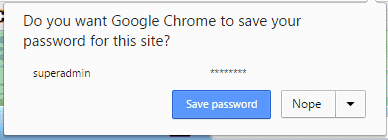
If you want to save the password, hit the first option. If you don’t, hit the second. If you want to turn of the save password option for this particular website, click the drop down arrow and choose ‘Never’.
Note that for mobile devices, you’ll only see a ‘Yes’ and a ‘Never’ option.
But I don’t want that!
It’s true that people can sometimes find this feature annoying or unhelpful. Maybe you are using multiple devices, some of them public, and you could find yourself clicking the wrong option if you are in a hurry. Now you have an automatic login to your account on a device that other people will use. Additionally, some people simply prefer to remember their passwords.
But I don’t want that!
It’s true that people can sometimes find this feature annoying or unhelpful. Maybe you are using multiple devices, some of them public, and you could find yourself clicking the wrong option if you are in a hurry. Now you have an automatic login to your account on a device that other people will use. Additionally, some people simply prefer to remember their passwords.
If you want to turn of the save password option for Chrome, you can do so at anytime.
Click the “hamburger” symbol in the top right corner and scroll down and click on ‘settings’.
At the bottom of the page click advanced settings.
You’ll find a section marked ‘Passwords and forms’. Here you simply uncheck the box marked ‘Offer to save your web passwords’
And that’s it! Chrome will no longer offer to save your passwords until you re-tick the box. If you want to achieve this for mobile devices you will need to open your Chrome app. Open the Chrome menu, go to ‘Save passwords’ in settings and slide the blue slider to ‘off’.
Viewing and deleting your saved passwords
You can see which passwords you have saved by going back to your advanced settings and clicking ‘Manage passwords’. A dialog will open with a list of your saved passwords. Inside this dialog window, you are also able to delete any password you don’t want Google to store for you anymore.
For Android devices, as well as for iPhone and iPad, you simply return to where you found the blue slider and touch the link for “View and manage saved passwords at passwords.google.com”. You can also view them on the web at passwords.google.com, as long as you are signed into your Chrome or Smart lock account.
Subscribe to:
Posts (Atom)